Help Shopline POS Merchant Sync GTO File Transmission to DCS
無評論
開發人員: Starter
店舖管理
安裝
免費
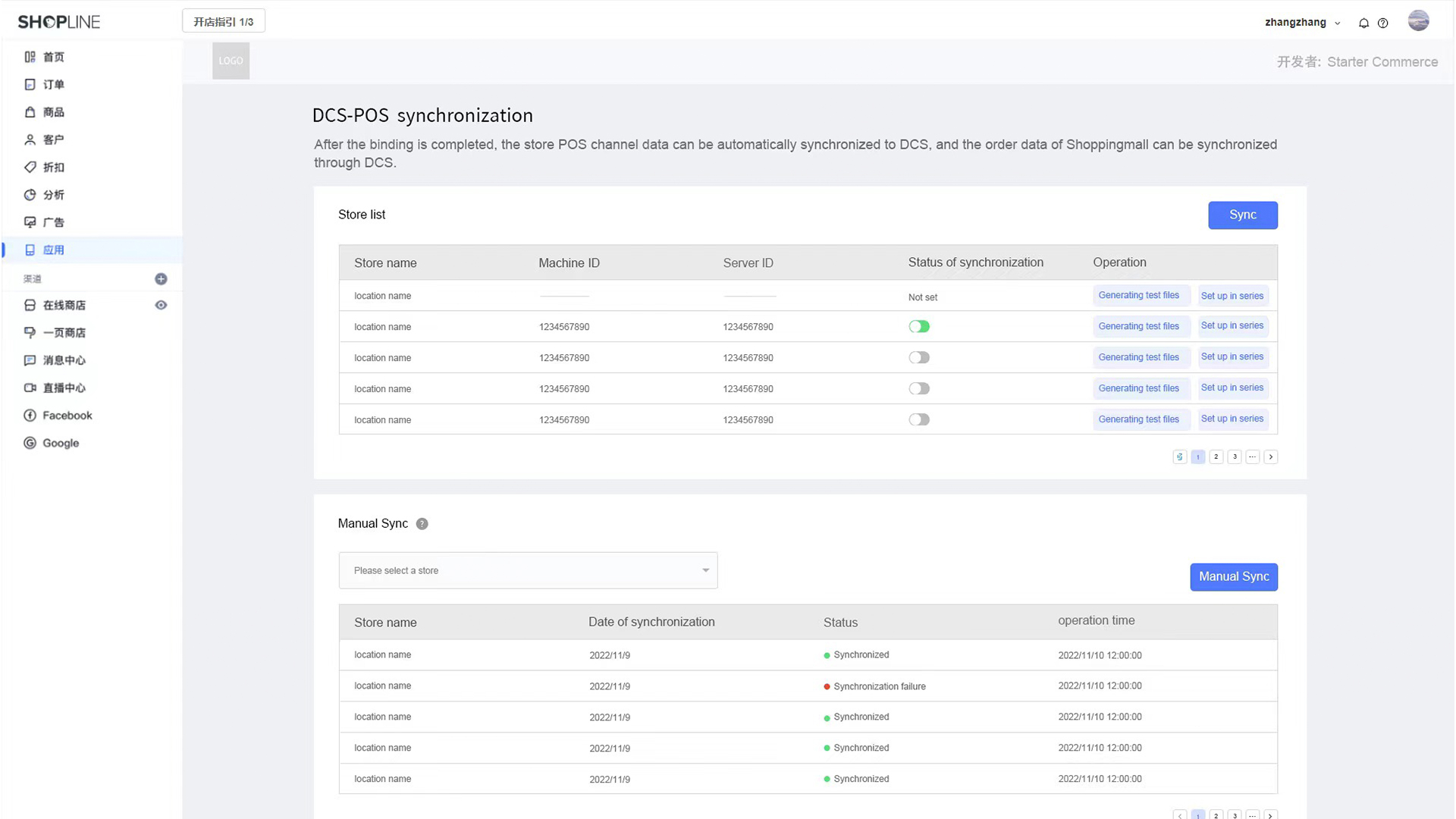
One-click binding, easy to get started
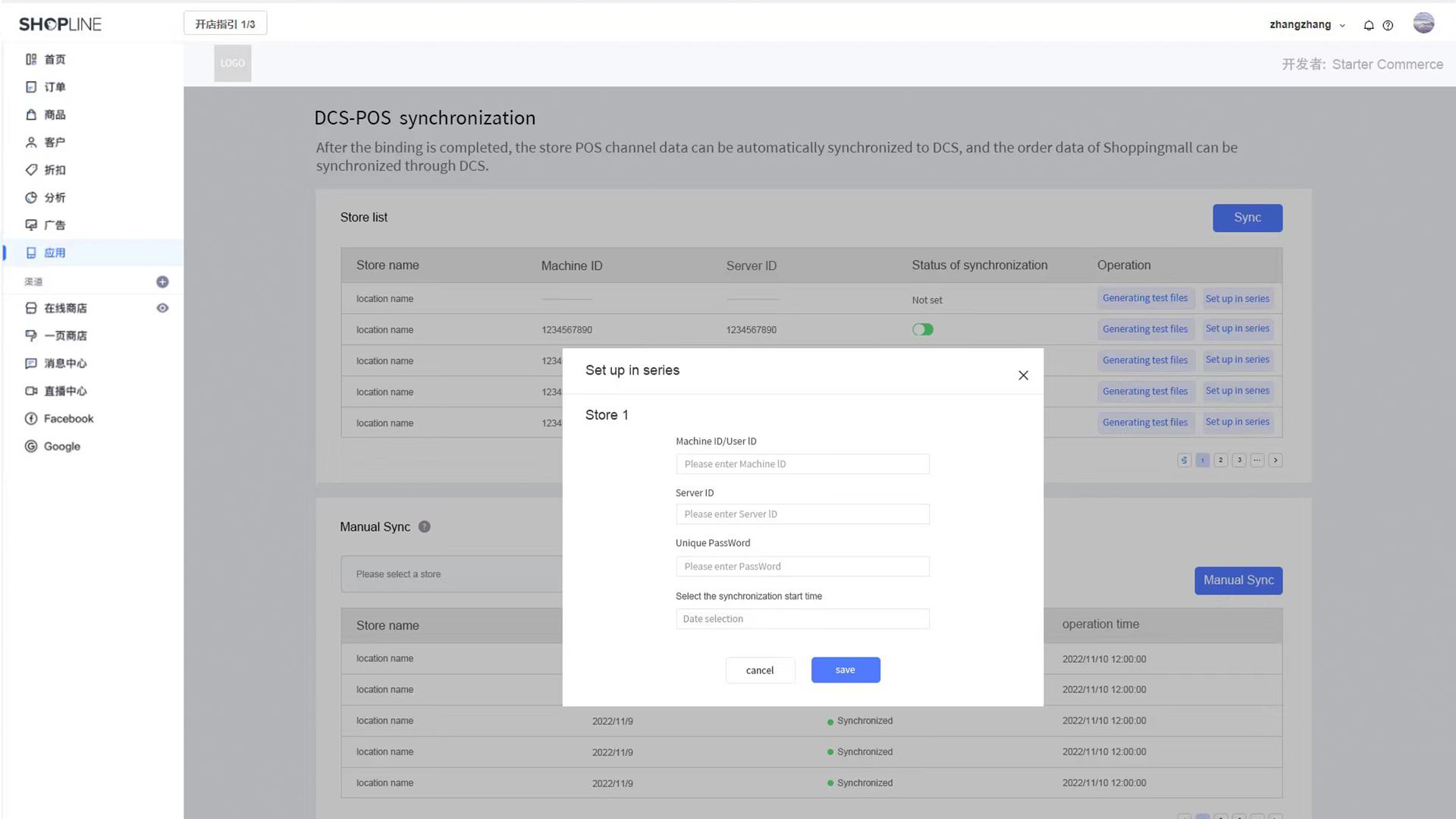
No coding experience is required, just simply get and paste the account info from DCS to complete the binding.
3 Ways to Submit Sale Files
1. Automated File Transmission according to pre-set timing 2. Manual trigger Resync / Resend for File Transmission 3. Download Sales File in TXT format, send via Email
Embedded Interface in SHOPLINE Admin
You can directly operate data synchronization on the same interface without jumping out of the Shopline background.
應用圖片
/3
關於
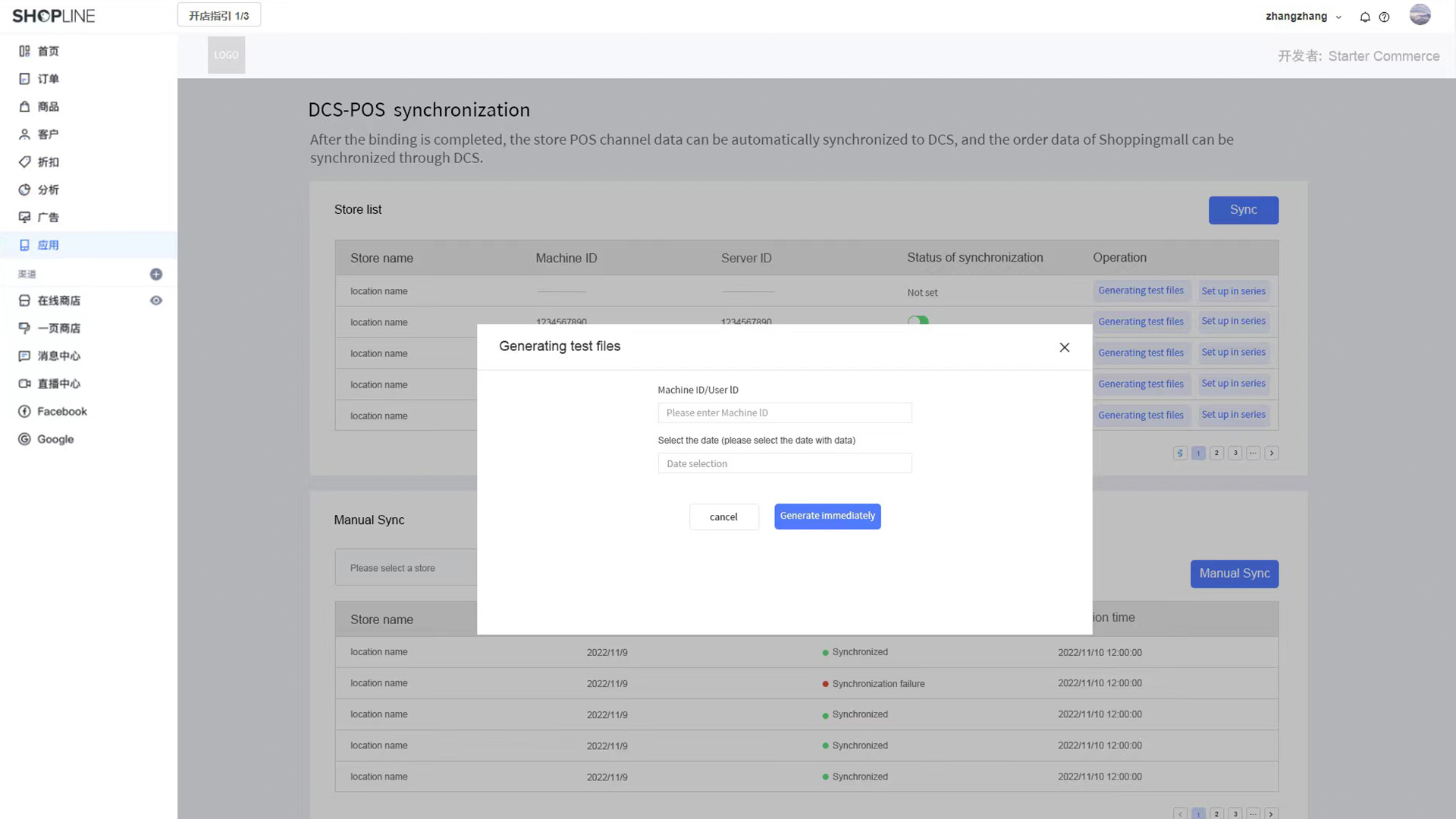
Workflow: GTO data transmission from POS to DCS 1. IF merchant’s lease contract has GTO component, mall will ask merchant / tenant to fill-up an option form to indicate Tenant’s Appointed POS Interface Development Team and Tenant’s POS implementation Contact details. Mall will share a copy of the POS option form with GTO provider (DCS). 2. Once DCS receive the option form, DCS will coordinate with merchant / tenant and Appointed POS (SHOPLINE) via email. 3. In the first email, DCS will provide all the information needed for the integration, and just the Machine ID, where merchant / tenant / Appointed POS is required to send a test file in (TXT format) to DCS via email. DCS will check the test file if correct. 4. Only then DCS will provide the unique password and server ID (Unique but maybe same depending on which mall server) for merchant / tenant / Appointed POS to start GTO file transmission 5. Re-Sync: In the event that DCS didn’t receive sale files or found missing sales file for particular date, they will email to tenant and POS vendor informing them to resend the missing files. Solution: Select “Date” and Manual trigger Resync / Resend for File Transmission.