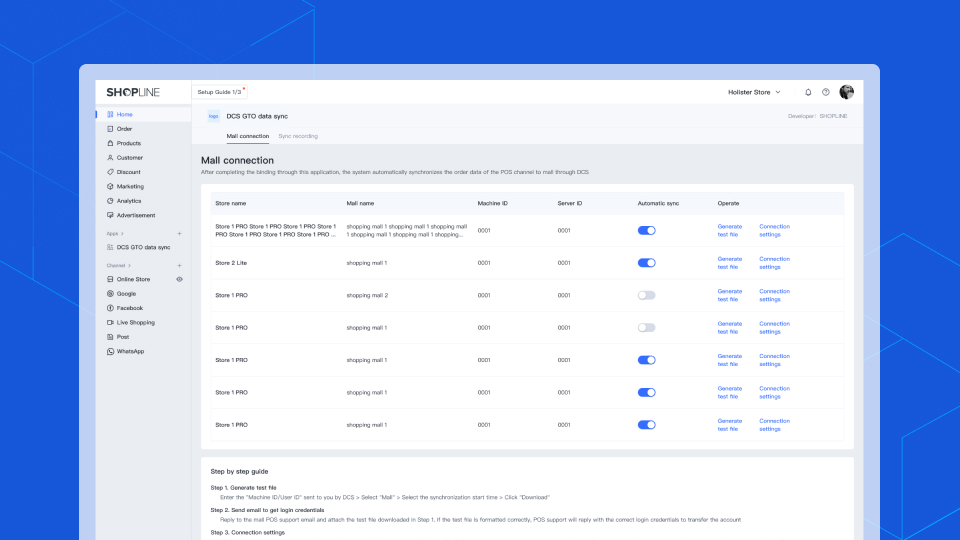
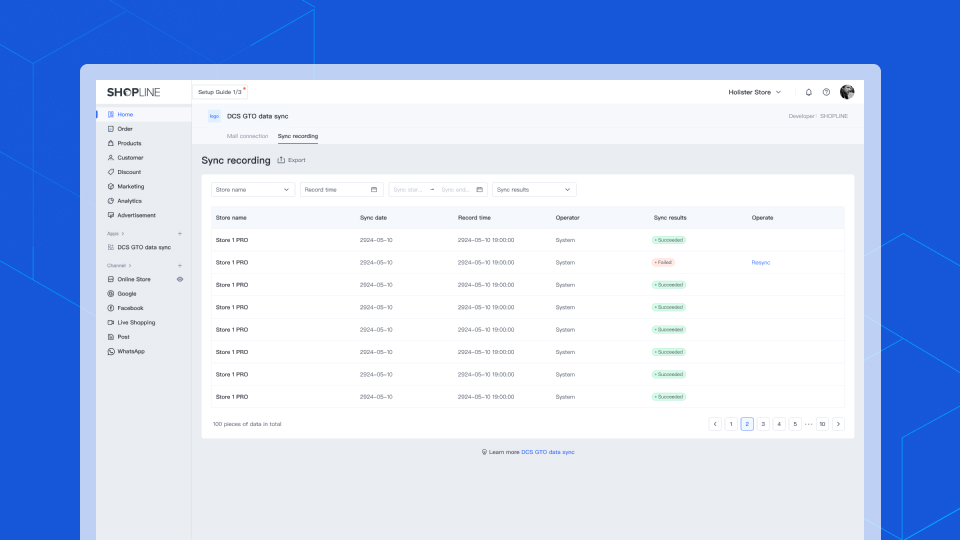
Help Shopline POS merchants synchronize GTO files to shopping mall
4.5
開發人員: SHOPLINE
店舖管理
安裝
免費
One-click binding, easy to get started
No coding experience required, just a few steps to bind your data synchronization account information.
Provide three data synchronization methods
1. Automatically transfer files according to preset time 2. File transfer manually triggers Resync/Resend 3. Download the sales document in TXT format and send it via email
Embedded interaction, better user experience
No need to open other software, you can complete the setup and data synchronization in the SHOPLINE store management backend.
應用圖片
/2
關於
Guide Step1. Generate test file Enter the "Machine ID/User ID" sent to you by DCS or shopping mall > Select "Mall" > Select the synchronization start time > Click "Download" Step2. Send email to get login credentials Reply to the mall POS support email and attach the test file downloaded in Step 1. If the test file is formatted correctly, POS support will reply with the correct login credentials to transfer the account Step3. Connection settings Click on the connection settings and enter the login credential information>Select "Mall">Select the synchronization start time>After clicking "Save", turn on the automatic synchronization switch to complete the mall connection.
No coding needed for GTO sync. It's a lifesaver for our POS system.
Market Quick Trade馬來西亞
TXT file downloads via email are convenient. Great for record-keeping.
Trade Prime Corner美國
Overall, GTO Data Sync is a robust and straightforward plugin. I would like to see more customization options for the synchronization settings in future updates.